hacking the tool

Woo. I finally got around to hacking up some keyboard shortcuts to change stroke weights in Illustrator. It is a horrible mess involving having Quicksilver trigger an Applescript when I hit command-option-control-[/] but it works – I mash the modifiers and hit [, and the size of my stroke decreases by 25%; modifier-mash plus ] increases it by a third. Which is close enough to the inverse of the decreasing to make me happy.

For further ugly hackery, I have bound the touch strip on my tablet to trigger those keys when I’m in Illustrator.

At some point in the future I might want to prettify the stroke weights it ends up with – a weight of 1.0002 points is not pretty – but for now I’m just going to enjoy actually being able to control this at small values without typing a number into the stroke palette. Which is a thing I find myself doing a hell of a lot when using art brushes.

Anyway, if you want ’em, download them here and have fun: Illustrator stroke width scripts

Illustrator CC 2014

New version. Hooray?

Screen Shot 2014 06 19 at 12 44 15PM
It installed next to the old version. This is getting kinda ridiculous. Admittedly I’m making it a little worse by keeping CS6 around, I keep hemming and hawing about reverting to it because of the way the pencil tool changed in CC and never quite decide to do it.

It offered to sync my prefs from the last version and completely failed to do anything. After I manually copied a ton of stuff over, I realized that while the “sync settings” switch had been turned on in the old version, it said it had never actually been synced. Am I crazy for thinking that it should have done this at least once somewhere in the past? Well, after I got everything set up on the new one I hit that obscure little sync button a few times, we’ll see what happens when Illustrator 19 comes out.
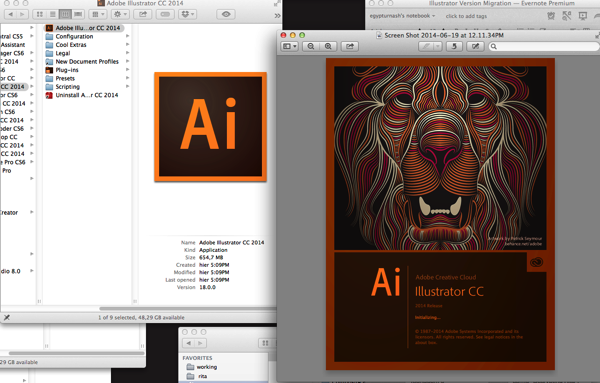
Screen Shot 2014 06 19 at 12 12 08PMScreengrab of the bitchin’ new startup screen next to the shitty boring periodic table icon Adobe’s been using ever since the “Creative Suite” rebranding.

Screen Shot 2014 06 19 at 12 36 52PM

Yeah. That’s much better. Looks a little derpy at this size but with a tiny bit of tweaking, and removing the dim gradient over it, this could be a TOTALLY RAD icon. I’ve been lovingly copying that Venus icon from the last pre-CS Illustrator since 2003; I would be completely happy with saying goodbye to her if she was replaced by a succession of stylistic riffs on A FUCKING LION ROARING FROM MY DOCK 24-7. Adobe please fire all your branding people and get on this immediately.

(I’m also glad to see an actual IMAGE on the startup screen again, it’s all been a bunch of abstract stuff across the whole line ever since the CS rebrand.)

Screen Shot 2014 06 19 at 12 54 14PM
It took like three quit and restarts before CC2014 would remember my choice to stop showing me this at startup. I guess it’d be pretty nice if you’re new to Illustrator. It basically leads to a bunch of video tutorials which is a mode of instruction I basically hate so whatever, I’ve also been using Illustrator for fourteen years now so I’m pretty sure I’m not the target market for this. Honestly though I don’t think a company Adobe’s size has any excuse for not providing this stuff in text too.

Pencil tool is still super-aggressive about closing the paths I draw, with no options to control this, ugh. This will continue to annoy me when doing both my roughs and finals.

There still isn’t a tool that lets me draw variable-width strokes that vary with the pen pressure. It’d be nice if Adobe would actually finish that feature someday. Still doesn’t work on scatter brushes or calligraphic brushes either.

Oh hey I just realized that the brush tool hasn’t had the path-closing feature added. Hmmm. Nah, that’s not gonna replace my sketching workflow; it creates just enough lag to drive me nuts, and makes me want to make a “nice” drawing at a time when that’s the last thing I want to do.

Ugh why is “new art has basic appearance” on again ffffff. Adding that to my list of Stuff To Frob In A New Version.

Gritting my teeth and going through the “what’s new” section expecting to suffer a ton of video tutorials with people sllloooowwwwllllyyyy eeeexxxxpppppllllaaaiiiinnnniiinnnnggggg ttttthhhheeeeee nnnnneeeeewwwww fffeeeaaaattttuuuurrrreeeesssss.

Oh good, it now doesn’t show a corner curving handle for every single shape when you have a lot of stuff selected. That feature may actually be usable now. It seems like it triggers based on some certain percentage of corners in the shapes you select? If I draw a bunch of angular stuff with the pen tool then it won’t go away, but if I select those and a bunch of sketchy curvy stuff it does. Checking in the last version shows that it now works this way, I guess they tweaked it in the 17.1 update after I’d recoiled in horror and turned it off. So I guess I may be marginally glad it didn’t sync my prefs. Maybe. A little.

ugh god I don’t wanna listen to this guy with a weird accent tell me about the new features of the pen tool. why does the help function in illustrator never fucking work for me any more, it always just tells me I have to connect to the Internet. Which I am. And I’m not blocking anything in the hosts file either. What is wrong with you Adobe.

Okay I found a text version of the WHAT’S NEW stuff. YAY.

Liking the rubber band pen tool preview and loving the drag unequal anchor points. Not sure I’ll use the “convert corner handle to curve handle” much, we’ll see. And HOORAY they FINALLY made holding down space to move an anchor point around while closing a path work properly instead of having it flicker all around insanely, this is something that’s been happening since the very first time I used Illustrator.

There is some new shit for Typekit whatever. Font menu is still the giant ugly piece of ass it’s been since CC, when they moved from a nice simple system dropdown with the font name written in it to a giant homebrew menu that jams up against the right side of the screen and interferes with me keeping the dock there. I dunno, maybe I’ll try moving the dock to the bottom or the left side, since Illustrator’s clearly not changing their side of this battle any more.

They “listened” to people’s complaints about the CC pencil tool and added a checkbox to revert some of the new behavior but did not fix the aggressive path-closing behavior that drives me bugfuck, oh well. I’ve sort of adjusted to it but it still gets in my way.And there’s a similar “it wasn’t ever broken” checkbox for the new “path segment reshape” behavior from CC, which doesn’t bug me as I really never reshape stuff that way anyway. I may start doing it more, I like the new version better.

Also they seem to have quietly fixed that bug I found where actions involving the Pathfinder palette lost certain important nuances of what you actually did after reloading the action, so yay! I have f1-f3 for non-destructive Pathfinder operations again!

Guess it’s time for some bug reports/feature requests…

Illustrator script: Blend color swatches.

My first love in digital art was Deluxe Paint, way back in the late 80s and early 90s. The way it exposed the Amiga’s color model really shaped a lot of the way I still work; being able to tweak a “global” color swatch in Illustrator and have everything I drew in that swatch immediately change, the same way tweaking a palette register in DPaint worked, was the deciding factor in me choosing Illustrator over Painter or Photoshop when I switched to a Mac.

Lately I’ve been experimenting with returning to these roots in the way I manage my colors. A common workflow in DPaint was to pick a couple of colors at widely-spread points on the palette, then make DPaint fill in all the intervening palette registers with a smooth gradient between them. I’ve been simulating this workflow by making a couple of global swatches, then drawing a couple of boxes, using Illustrator’s blend tool to generate a series of shapes that have a color gradient, and eyedroppering all of those colors into the palette, then setting them to global swatches. But obviously that is a lot more steps than “select two colors, hit a button”. So I spent an hour and a half doing some scripting…

As the video notes, it only works on global CMYK swatches. If you work in RGB or spot swatches, you’ll have to tweak this some.

Download Blend Swatches.jsx and stick it in the presets/your_language/scripts directory, then invoke it with file->scripts, and enjoy. (You’ll have to quit and relaunch AI if it’s running before the script shows up in that menu.)

Hard Bargain

Hard Bargain
Hard Bargain

Oh hey here’s a commission I took last year at Anthrocon.

After drawing that fake crack screen, I still had the kinds of palettes I used back on the Amiga on my mind. Which were pretty similar to the color schemes the Nosepilot guy used. I did a card for Furoticon today in that sort of space, then decided to knock off another thing that was Not Rita by doing this as well.

Basically the method is this:

1. Pick 3-4 colors. They should have different values.

2. Blend between them. Three spaces in between is about right.

3. Eyedropper those middle colors into new global swatches.

4. Draw lots of shapes under my rough, in the same way I draw stuff for Rita. Try to keep each object pretty much in one color ramp, aside from the occasional accent.

No gradients, no blend modes, just solid shapes in a thoughtful palette. Pretty simple, and a nice place between “really colorful” and “takes forever to draw”. I may have to try doing some more stuff like this for a while; I feel like I’ve been bouncing between the super-abstracted colors of Rita and a way-too-modeled place for too long.

Ultimately, I’m just coming back to a way of coloring I was seeing all the time when I watched demos on the Amiga. I’m back where I began, except a few levels higher; progress is as much a spiral as a straight climb.

Illustrator process: distortion meshes.

Yesterday, I worked on the next page of Rita. It includes a figure lying under a quilt. I decided that this was a perfect job for a distortion mesh; I grabbed some regular gridded details from an earlier page, turned them into a pattern fill, and started futzing about.

Screen Shot 2014-03-14 at 11.18.42AM

I started to notice some distinct quirks about how the mesh was behaving as I started to push it into overlapping itself. I did some crude patches to work around it, but I felt like I still had things to learn. So when I got up today, the first thing I did after showering was to open up a new document for the specific purpose of exploring how distortion meshes work.

Full preview.

Full preview.

Outline view.

Outline view.

THINGS I HAVE LEARNT:

– Illustrator does not guarantee that a self-overlapping mesh will be rendered the same way as it’s rotated. Look at the bottoms of the mirrored images. It seems to render the leftmost pixel of the undistorted imagery, and either completely drop, or merely hide, the rightmost. (I need to do a test with multiple vector shapes inside the mesh instead of the bitmap I used here – that’ll tell me exactly what’s happening here.) Presumably there is also some sort of painting order going on from top to bottom, as well.

– If you want to simulate drapery, you need to add more mesh lines, and push them around so that there’s no self-overlap where the drape goes behind itself.

– If you need to break a mesh point’s curve handles into a corner, you need to switch to the pen tool and break it with that.

– It is probably best to create a regular grid for purposes of draping stuff. Possibly both in terms of the mesh you create to do the distortion, and the imagery you’re distorting? I will have to explore this when I do my proposed exercise of drawing a figure with mesh-distorted patterns on all their clothes. Possibly as a standalone image, possibly as a costume change in Rita…

I wonder if it would be possible to automate the process of adding more mesh lines to hide self-overlap? I may have to see how much detail of a mesh is available to scripts. But later for that. I have a page to finish.

contemplating upgrades

Oh man, I think I may be about to grit my teeth and give in to Adobe’s Creative Cloud. I went and looked and they have now quietly added some features I actually want. Curved corners, very much like what one of Astute Graphics’ plugins does, except better-integrated; the return of sliders for transparency (when they rebuilt the interface for CS6, or was it 5? they turned a bunch of sliders into dropdowns with 10%/20%/30%/etc), bitmaps in art brushes, and most importantly some new fillips to the pencil tool that lets you hold down a key to make some or all of your lines into straight ones.

The pencil tool is like 95% of my Illustrator use. This could be important.

Running the math.

Single app: $20/mo, $240/year.
Full Creative Suite: $50/mo. $600/year. OR if you’re an existing customer you can get the first year for $30/mo – $360/year.

My usage of the Creative Suite is basically Illustrator all day every day, plus InDesign and Premiere a few times a year for putting together books and Kickstarter videos and whatnot. Let’s say I need one of them like four months out of the year – if I subscribe to one app or another for a month or two and cancel it after, that’s $80/year.

So Illustrator plus ad-hoc usage of other apps is around $320. I could see it easily being $360, what with forgetting to cancel subscriptions, having book production run long, etc. That is about what I paid for a new release of Illustrator every year and a half. I’m still giving Adobe more money than I used to, but I’m also able to use the other apps without the immense hassle of abusing trial versions and/or the SAY YOHO route.

The existing user price works for me for a year. But unless I suddenly start making a LOT more money off my stuff, I’ll be going down to the single app plus ad-hoc rentals of other apps once that’s over.

Either way, I’m going to mull this over a few more days. I’m in the very last stages of getting Rita 2 to press, I really do not want to get lost down the rabbit hole of upgrading anything right now.

edit. Okay fuck it I sent off the very last tweaks to Rita 2, I did it. Now I get to have the JOY of migrating my settings. ALWAYS FUN. I just tried doing some by cloning over files, and now Illustrator CC is crashing on launch even after removing stuff I added to its settings. WHEE. So I get to wrangle installing it AGAIN. And it’s been stuck at 90% for like five minutes now…

the process: a cute AI globby brush

Here’s a fun little brush I just whipped up in Illustrator.

1. Draw a 1-pt line.
Screen Shot 2013 10 11 at 4 32 50PM
2. Go to the appearance palette, click on the ‘fx’ dropdown. Path->outline stroke.
Screen Shot 2013 10 11 at 4 33 04PM
3. fx->distort & transform-> roughen.
Screen Shot 2013 10 11 at 4 33 29PM
These are the settings I used, go with whatever makes you happy.
4. Drag the ‘outline stroke’ entry in the appearance palette ONTO the ‘stroke’ entry.
Screen Shot 2013 10 11 at 4 34 06PM
5. Drag the ‘roughen’ entry to just above the ‘outline stroke’ entry.Screen Shot 2013 10 11 at 4 34 14PM
6. Drag ‘outline stroke’ ABOVE ‘roughen’.
Screen Shot 2013 10 11 at 4 34 21PM
I tried other ways to make this stack of effects happen, but this is the only one that would reliably and repeatedly work for me – I’m pretty sure this is some kind of bug.
7. Now you have a cool brush with messy edges! This is a 6-point dark purple stroke, with two 1-point strokes slashed in over it in a lighter color.
Screen Shot 2013 10 11 at 4 34 45PM
Screen Shot 2013 10 11 at 4 44 25PM

I may never draw a squiggly highlight by hand again. I’m making a graphic style of this and sticking it in all my startup documents.

BONUS ROUND: PRESSURE SENSITIVITY!
Screen Shot 2013 10 11 at 4 45 24PM
Make a simple calligraphic brush. Now you can use the brush tool (B), vary the width of your squiggly lines with pen pressure, and choose different “sizes” of brushes with the stroke width panel.

You could probably do a bunch of other interesting things with this method of outlining a pressure-sensitive stroke, then applying live effects to it.
Screen Shot 2013 10 11 at 4 52 07PM
Stylize->Scribble looks pretty cool, for instance.
Or how about stylize->distort and transform->pucker and bloat?
Screen Shot 2013 10 11 at 4 56 14PM

Fool around, stack some effects up, experiment. If you were really dedicated you might be able to produce a really fun set of janked-up styles.

warning signs of something

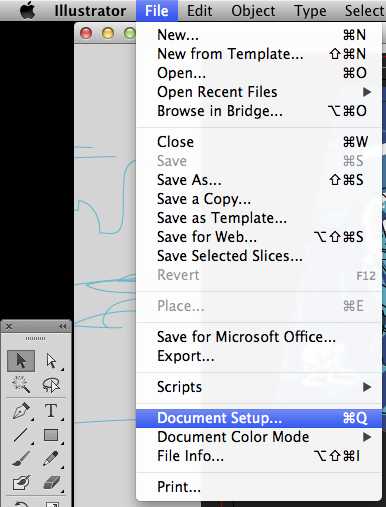
You know you’re serious about a program when you remap command-Q to something besides ‘quit’.

Screen Shot 2013 09 03 at 10 54 14AM

I did this a while back, and was reminded of it just now when I actually wanted to make Illustrator stop running for the first time in forever – I’d removed some plugins whose trial period had expired, because I was sick of them cluttering up the toolbar, so I had to restart AI. I hit command-Q and I was like “oh yeah that doesn’t work here” and giggled a little. (And yes, my hand just kind of instinctively hits command-Q whenever I want to play with the stuff in Document Setup nowadays. I do it just often enough that the shortcut sunk in.)

mah process

Here’s a little video of how I do my thing in Illustrator. I’ve done a few process videos before but I’ve never kept it slow and explained exactly what I’m doing.

Unless your bandwidth is total ass, you probably should watch this in 720p or 1080p, as it’s a recording of me working on the big monitor at my desk.

well that’s new

Screen Shot 2013 05 05 at 12 24 54AM

Huh. That’s new. When did they add that? Time to tweak all my template files so my standard five art brushes respond to pressure.

The drawing was done using exactly the brush you see here. I only really took advantage of the pressure sensitivity in a few places – nose, eyelashes, and upper lip – but the whole thing felt a lot more naturalistic than it normally does. I could probably knock out some pretty nice inks this way, if I ever actually cared to do that.