How To An Illustrator: Messy Brushes

Screen Shot 2016-03-17 at 1.39.46 PM

Here’s a thing I’ve been kind of wanting for a while, and finally nailed: that dotty, super-spitty-airbrush look.

  1. Draw a black circle.
  2. effect->brush stroke->spatter, play with the parameters until it looks good
  3. object->expand appearance
  4. object->image trace->make
  5. window->image trace, play with the parameters until it looks good
  6. object->image trace->expand
  7. drag into brush palette, make a scatter brush

All the brushstrokes in that screenshot are done with the same green with varying opacity settings: 50% for all of them, normal/screen/multiply mode.

You probably shouldn’t try to fill in a whole image with this as things would get pretty slow to render; use it to create accents.

You could try different starting shapes and different effects – maybe a triangle that’s been put through the ocean ripple effect is just what you want. Kinda looks like a lot of messy angular brushstrokes, huh?

Screen Shot 2016-03-17 at 1.52.44 PM

Or how about if I add a ‘roughen’ effect to the paths I drew, on top of using the scatter brush?

Screen Shot 2016-03-17 at 1.54.19 PM

Wow, it sure looks like I made a lot of twitchy little brush dabs there, doesn’t it. Thanks for doing the work for me, Illustrator!

stipply brushes

Edit, some time later: Or how about that oh-so-coveted spitty airbrush look? Seriously, I see people asking for that one all the time.

Caveats: You don’t want to try and draw an entire picture with these kinds of brushes. Illustrator will slow way the hell down. Lay in flat shapes with simple filled paths, then come back in and paint highlights/shadows with your Messy Brushes.

schooling: clouds

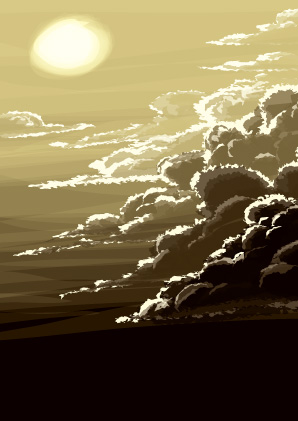
Over on the Illustrator subreddit, someone posted a link to this image, asking “is it possible to make something like this in Illustrator”:

what_only_exists_in_the_mind_by_veinsofmercury-d8wrezd

“What Only Exists In The Mind”, by Jeffrey Smith

And it got the usual “not really, use photoshop/uh I guess you could use gradient meshes but use photoshop/you could but it’d take years, use photoshop” answers from people whose knowledge of Illustrator kinda stops at the pen tool.

Me? I looked at it and was like, yeah, pretty easily. Lots of organic pencil tool shapes, do some blurred shapes for the smooth hills, stack up some transparency in one of the ‘light’ blend modes for the tonal shift in the sky, make some art brushes for most of the tree you’re good. I tossed off a quick reply to that effect and went to bed.

I woke up to a reply saying “I call bullshit”.

And I was like, oh, kid, it’s on now.

So I got out of bed and got to work. Forty minutes later, I had this.
clounds

Which obviously is not as intricately done as the original image, and doesn’t have the knowledge of How To Clouds that the original artist seems to have been building for about a decade or so (seriously this guy can clouds wicked good, like half his gallery is is full of meticulously-rendered cloudscapes). But I was like, yeah, if I was willing to spend a whole day drawing clouds at about 4x the size of the jpeg under discussion, I could get a sky like that image. “Doing the rolling hills and mountain is left as an exercise for the reader.”

I replied with my quickie rough and those caveats, and got a ‘holy shit!’-toned reply back. Yeah, I’m just that good. *preen*

Clouds

And then I spent about fifty minutes on a picture of myself blowing a cloud off my stylus like a gunslinger after a trick shot, with some of my own usual tricks for clouds added to the mix – various amounts of gaussian blur, a bit more roughen/tweak effect here and there, and of course a mezzotinted overlay for texture. I’m still not as good at clouds as Mr. Smith is and probably never will be, given that his handle is “Ascending Storm”, but I’m pretty happy with how this one came out.

If you want to see how it’s done, a CS6 source file is here: clounds-cs6.ai (I use CC2016; CS6 is the oldest version it’d save it as without crunching the blurs into an uneditable bitmap.) Or you can read about the tricks I used to draw this in a fraction of the time you think it took if all you know is the pen tool.

Screen Shot 2016-02-26 at 12.45.19 PM

The basic appearance of the cloud shapes is this:Screen Shot 2016-02-26 at 11.20.49 AM

Roughen in this case was set to 4pt, absolute size, 15/in, and tweak was set to 3% horizontal and vertical, only modify in/out control points. This results in a simple ovoid squiggle becoming something kinds complicated and cloudy:

Screen Shot 2016-02-26 at 11.23.03 AM

Draw a big white bubbly cartoon cloud, add this effect, and suddenly you’ve got all these fiddly vaporous bits. Change the fill color to black and start drawing some shapes at 50-70% opacity, maybe switch back to white and a high opacity and add in a few inner highlights, and pretty soon you’ll have some nice stormclouds with very little work. (Protip: go into the ‘tools’ section of Illustrator’s keyboard shortcuts and assign the number keys to 10-100% opacity, then you can switch opacity on the fly.)

You can further complicate this; Smith’s work has fairly discrete colors and really solid, heavy clouds, but I prefer more vaporous clouds on sunnier days. So for the self-portrait clouds I added a little bit of gaussian blur. Not much, just like 2-5 pixels worth on different shapes as I went out towards the left edge of the cloud. (Process: select a handful of shapes, press the hotkey I’ve made for gaussian blur, frob the slider, hit okay. Select more shapes further down, repeat.)

Screen Shot 2016-02-26 at 11.30.21 AM

That still looked a little chunky, so I targeted the layer and added a bit more roughening, tweaking, and blurring to the entire cloud at once:

Screen Shot 2016-02-26 at 11.36.52 AM


You can target a layer for effects by clicking the circle on its right in the layers palette; the dark circle on the ‘clound‘ layer indicates that there’s an effect applied. These are some pretty subtle effects – roughen is 1pt absolute, 47/in; tweak is 2pt, modifying anchor points and ‘out’ control points; the gaussian blur is 1.7 px. All of these numbers are ones I arrived at by the time-honored method of yanking the slider to a random point that felt about right and tweaking it until it looked good; I’ve been using these effects long enough that I have a general sense of how it’s gonna look.

You can, of course, compact more of the shapes in the cloud into one path. I did a lot of the shading on the figure with this appearance stack:

Screen Shot 2016-02-26 at 11.43.09 AM

Two quick paths become like six super-ragged, fiddly, translucent shapes, for some nice smooth and textured shading done in seconds. There’s a few interesting tricks going on with this appearance stack, so I’ll dissect it a bit more.

The ‘add’ at the top seems to do nothing if it’s the only effect on a path. Go on, try it – draw a quick shape with the pencil tool, give it a fill color, and add the ‘add’ effect. Nothing seems to change. But if you switch to a stoked path, you’ll see the difference: the ‘add’ effect forces Illustrator to close your sloppily-drawn open path for you This is important down below in the top two fills, because it completely changes how ‘offset path’ functions…

Screen Shot 2016-02-26 at 11.50.44 AM

See? Turn it off, and the two fills with an ‘offset path’ effect turn into what looks like a simple, boring stroke. (I’ve also turned off the roughens and tweaks to show this better.)

Screen Shot 2016-02-26 at 11.49.23 AM

I mean, it’s not like there isn’t a cool watercolor edge effect kind of thing going on here, but it’s just not much good for multiplying your effort by drawing one path and having Illustrator lay down two or three more similar-but-different ones, right? But doing the ‘add’ effect (it’s under the Pathfinder effects, btw) closes the path, and suddenly ‘offset path’ starts outputting a slightly larger or smaller copy of the whole shape.

Each added fill is offset a different amount from the base shape; they’re also tweaked up at a large scale (5pt, out control points only), then roughened (4pt absolute, 15/in), then tweaked again (3%, in/out control points) to jank them up nicely.

As to the figure? Since I was being quick and lazy, I googled ‘blow smoke from gun’ to get a general idea of the pose, dropped the first one with a good silhouette into Illustrator (the second one on the results page), and quickly sketched the outlines of the major shapes with the pencil tool.

Screen Shot 2016-02-26 at 12.51.08 PM

I then deleted the image, drew solid shapes that looked like what I see in the mirror, drew some loose shading with that cloud appearance, and added some more shading with the appearance stack outlined above. Mix in a photo of my Wacom stylus to get its proportions dead on, and a few minutes looking at how I hold it when I lift it up nearly vertically, and I was pretty much done.

(That probably sounds pretty cavalier; honestly after drawing for twenty years it really is that simple to me. As always, the big major tips for this are “learn to draw for real”, and “double-click the pencil tool, turn on ‘fill new paths’ and ‘edit selected’ and turn off ‘keep selected’, then you can very rapidly swish out solid shapes with your Wacom tablet and throw your RSI-inducing mouse in the trash where it belongs.)

And for the finishing touch, I added one of my trademark cheats to make an image look a lot more detailed than it really is: make a new layer, draw a big rectangle that covers the whole image, add the mezzotint effect, then target the layer and set it to about 12-25% hard or soft light. I do the transparency on the layer rather than the mezzotinted rectangle because that way Illustrator doesn’t try to re-render the mezzotint effect every time I tweak the transparency.

Lifecrease

The Siege of Syracuse

Back in 2007, I drew a picture and decided it looked like an album cover. So I drew a fake back cover, as well.

Siege of Syracuse (back cover)

Last week, I was looking at that picture and decided I still liked it. So I drew another picture, designed explicitly as the cover for a CD from the same band.

Lifecrease

And, of course, I had to draw a back cover as well. Complete with moody photo of the band.

Lifecrease-back

Back in the early 70s, Raven Museum was a fairly typical prog band. But by the early nineties, they’d embraced modern technology, drifting into a somewhat psytrance-flavored sound.

With the first one, the cover image came first, then the title and back cover; with this one, I started with the title, then the image, then the back cover. I had a lot of fun playing with the implied narrative of the credits – if Richard Chatham is the drummer, then why’s someone else credited with drums on half of the album? And why are there only three people shown o the back cover, despite the band officially being four people?

I figure that future albums list Richard as “drums emeritus’, and he continues to be absent in band photos and live performances. When asked what happened to him, the band inevitably changes the subject.

I also kinda feel like drawing my fictional band is the next step on a slippery slope that ends with me doing comics about them. Hey, it’s not like I’d be the first; Matt Howarth, one of my major influences, had a whole constellation of imaginary bands, one of whom started in a comic book that ran for like thirty or forty issues.

Technically, I’m proud of the front cover of the new one. I figured out a reasonably efficient way to do distortions without leaving Illustrator:

  1. Make a new layer, draw a 50% grey rectangle that more than covers the area you want to distort. Draw your greyscale distortion map on top of it, matching whatever parts of the image you need to – here, I matched the ripples I’d sketched in the water.
  2. Make a new artboard the same size as that rectangle you made in step 1. Export this artboard as a 300dpi greyscale PSD. I found that Illustrator consistently appended ‘-distortion map’ to the exported file name, interestingly enough.
  3. Turn off the layer you drew the distortion map in.
  4. In the layer you want to apply the distortion map to, draw a rectangle the same size as your distortion map. Give it no stroke and no fill.
  5. In the layers palette, target the layer you want to distort.
  6. effects->rasterize. 300dpi, add 0pt around the object.
  7. effects->distort->glass, load in your distortion map. 100% size, other sliders to taste.
  8. You’re done.

If you want it to be a higher resolution, you can do that. Just make sure you export the distortion map at the same resolution you rasterize the stuff you’re distorting.

(Sure, you could do this completely vector by doing a distortion mesh. But making a complicated mesh is a fiddly, annoying task that I really don’t care to do. And it takes a hell of a long time to render. This takes a not-unnoticeable amount of time to render as well, but it’s a lot faster than a distortion mesh on my machine.)


Drowning City: first step.

Drowning City - first panel

These are the first two finished panels of The Drowning City. They look pretty much exactly like I envisioned the comic looking fourteen years ago when it started to really take shape.

They took a bit more than an hour to draw, not counting the half hour or so I spent drawing the sword and making it into a brush so I pretty much never have to draw it from scratch again. Some of that time was spent swearing at Illustrator and trying to nail down a weird bug where the Graphic Styles panel stops working properly; ultimately I ended up just working out of the panel where I had the library of styles I’m keeping in another file. I really need to spend some time trying to nail down exactly what makes the Graphic Styles panel start glitching out and submit a bug report.

There will be many more panels to draw before this comic is done. But having the first ones done makes it feel much more like a thing that’s really going to happen.

your adobe illustrator lesson plan

Someone on /r/adobeillustrator posted an image and asked what parts of the program they should explore next. I ended up giving a list of most of Illustrator’s major features, ranked by how I think about them and how I sort of see them in different levels of complexity:

core stuff: global palette swatches, flat-color shapes with the pencil tool (double-click and play with its settings, the defaults suck), layer organization, draw above/below/inside (and clipping masks as well), transparency. Also of course all the basic shape tools and the pen tool (never turn more than 90° between two points, pull curve handles out to about 1/3 of the length of the curve segment they control, avoid s-curves between two points).

finesse: gradients, blurred shapes, line blends, pathfinder (I almost always hold the alt key when visiting that palette to keep my source paths live), play with bitmap effects and find 2-3 that don’t mostly suck (I find most of them to be kind of ugly, but I love using a soft/hard light mezzotinted rectangle at the top of the layer stack to apply texture to my work, also blurs can be super useful), line width.

don’t repeat yourself: blends, art brushes, scatter brushes, maybe symbols though I rarely use them, pattern fills. each of these is a powerful way to make complicated work quickly; each of them is the right tool for the job sometimes. play with them, learn their quirks, learn when to use one over another.

your invisible assistant: distortion meshes! Make a 1×1 d-mesh, then use the perspective mode of the free transform tool, maybe push the mesh points around a little more, and voila, something complicated in perfect perspective.

advanced: funking up your paths with live effects, layering multiple fills/paths/effects in the appearance palette, saving them for later use. I’ve been doing this a lot lately, as I find ways to make a faux-painterly look that is still clearly not “fake painting”, and renders quickly as my comic book pages get more complicated.

stuff i never use: gradient mesh (too fiddly, doesn’t play well with global swatchs), charts, autotrace.

And maybe that’s the outline for the book on Mastering Illustrator that I’ll probably never write.

Illustrator tip: Symmetric drawing.

2026 addendum: I wrote this in 2015, six years before Adobe added “repeat groups” to Illustrator in 2021. Repeat groups handle a lot of this stuff for you but are a bit less flexible, and also want to operate on groups, not layers, which doesn’t mesh well with the way I think about these things. Like MirrorMe, they let you do this with on-canvas controls instead of playing around with the Transform effect. If I want on-canvas controls, these days I’m most likely to use Astute’s Stylism tool to add a transform effect and play with its settings.


Here’s a way to quickly do repetitive designs with Illustrator. The examples and directions are for a kaleidoscopic effect; you could also use it for a simple vertical or horizontal mirror.

  1. Make a big rectangle. No fill, no stroke. Like, really big, bigger than you intend to ever let your design get and then some. Put its center wherever you want the center of your design to be.
  2. Click on the circle beside the layer’s name in the layers palette.
  3. Effect->distort and transform->transform. Choose a rotation value (something like “360/5” will work if you don’t want to bother doing the math), type a number in the ‘copies’ box (say, “4”).
  4. (optional) Lock the rectangle you drew.
  5. Deselect all, appearance palette->flyout menu->clear appearance.
  6. Draw some shapes, watch them be automatically duplicated. You can make something super complicated very quickly this way!

Step 1 is the key to this; if you don’t draw the giant rectangle, the center of everything on your layer may shift every time you draw a new path.

You could do this on multiple layers with different repetition settings. You could also do this on a layer with sub-layers inside it, to make working on different parts of a complex design easier.

You can edit the repetition settings by repeating step 2, and visiting the Appearance palette.

If you want to define this more interactively, you might enjoy Astute Graphics’ Mirror Me plugin. I have and never use it, though.


Adobe’s added “Repeat Groups” that provide on-canvas control for symmetry since I wrote this but 2026 me still works this way. Why? Habit, partially – I know how to set this up quickly, and it gives me a lot of precise control over some fiddly details that MirrorMe and Repeat Groups only let you do one way. If I drew a ton of super-symmetric designs regularly I would have had a serious look at both Astute’s MirrorMe and Adobe’s Repeat Groups and would really have an opinion on what the strengths and weaknesses of each method are. As I said in the note at the beginning of this, I’m highly likely to use Astute’s Stylism tool if I want some on-canvas controls for this method.

One of those moments of loving my tools.

“It’ll be great,” I told myself. “An endless plain of black eggs, stretching off into infinity. An awesome image to open the last chapter of Rita with.”

Yeah, sounds great. Until I have to draw them all. Or cut and paste them. Eh, screw that. I made a scatter brush (sorry, no video of that, I did this a while back), drew a couple of lines, and blended between them. Instant egg-field.

I faffed around for another twenty minutes or so after recording this video, and have a nice horizon line of egg-piles developing, with some aerial perspective as well. It’s mostly done. I’ll probably spend like another hour finessing it before I’m really happy with it.

I am so glad I don’t draw comics by hand. Making this happen in traditional media would take forever.

One of my favorite Illustrator actions.

Screen Shot 2015-08-13 at 6.31.47 PM

This is one I use all the time when making comics. I draw shapes for my panels, then put them on separate layers. Then I click the targeting circle on the right of the layer, and hit the f-key I have assigned to this action. Illustrator then makes a copy of the panel shape for future use, turns the panel shape into a clipping path for the entire layer, locks that clipping path, and makes a new layer inside this layer called ‘bg’, which contains a slightly larger copy of the panel shape.

Then I can start making more layers inside the panel’s layer and draw freely, without worrying about anything protruding outside of the panel. When I’m done working on a panel I can close up its layer, which results in a lot less clutter in the layers palette.

When I start doing ‘Drowning City’ I may make a variant of this that creates an opacity mask for the layer instead of a clipping mask, so I can draw panels with pseudo-brushed edges. I’m not entirely sure of this yet; I need to see how painted panels look with crisp edges and messy ones.


scribble test

scribble-test

Oh hey if you make a few graphic styles to make it easy to switch between a few sets of settings on the ‘scribble’ effect you can really quickly do something pretty close to cross-hatching. I tried this on a super quick doodle then wanted to do something a little less quick, so I roughed out dragon-self pole dancing because that’s kind of a default thought now I guess.

You can do a pretty similar effect with pattern fills but that tends to either look kinda fakey or wholly mechanical; this one is both really precise and just a little bit organic, which is generally where I want all my Illustrator work to reside. I like it.


About a half hour, Illustrator. As usual. I am pretty sure doing this in real media would have taken a lot longer and made my wrist less happy. I’d have had more control over suggesting the contours of the surface but honestly I’m not sure that’s a tradeoff worth making.


(CYBOrG ARTIST IS PLEASED WiTH Her CAREFULLY MODULATEd INHUMAN PRECISION)

The Bestest Pony

The Bestest Pony


Something I whipped up for my ex-with-benefits’ birthday. Which is today. And maybe for mine. Which is the day after tomorrow.

Illustrator, maybe like 45min.

Also I drew a sequel. Or rather my pornmonger alt drew a sequel. It is NSFW. You have been warned.

And then she drew another sequel. It’s even more NSFW. Or for opening in front of relatives, if you’re checking your feeds at your July 4 festivities.