a fragment

On and off this past week or two, I’ve been working my way through “The Road To Amber”, the last volume of NESFA Press’ collections of all of Roger Zelazny’s short stories. It’s a mix of standalone stuff, several fragments he wrote to tie up some loose ends of Amber and figure out where he’d go with a third series, and some nonfiction essays of his, and some stuff about his life.

There was a bit in there about his writing practice: every work day, he would require himself to sit down and write at least three sentences, and he would require himself to do this four times a day. If all he got out of a particular day was twelve discombobulated sentences, that was okay. And something in me said, huh, that sounds like an interesting exercise. So instead of closing the book and going to sleep, I got up and went to the computer, opened Illustrator, and doodled something using the same vibes as that Piranesi-inspired image I did a couple months ago. And then I made a new artboard, and thought I was going to do another take on that image, but instead I found myself making a big text box and just… typing. No editing, no rephrasing, whatever comes out of my fingers is what I have to work with, typos and all. Well, maybe a couple of typo fixes. But not many.

man what the fuck. That sure was a transmission from Death’s Radio right there. I’m going to bed. I gotta get up tomorrow morning and try to take a cat to the vet to have her persistently scabby nose looked at. Maybe I’ll look at this again tomorrow and it’ll suck. Midnight free-writing is allowed to suck.

there is nothing but work work work

A few days ago, Patreon’s social media folks posted this in the Discord chat as a “Thursday Thought Starter”

And I kind of went off on this. Because I am a person who has spent a lot of time, effort, and money on organizing my life such that my creative work is a major part of it – but holy shit there are so many other things that make me happy:

Cuddling my SO. Reading a good book, whether it’s an old favorite or something new to me. Going out to see some live music (really a thing I gotta start doing more again now that the pandemic’s over). Dancing. Riding my bike aimlessly around the city and the park. Sitting outside a cafe nursing a drink and watching tourists. Answering questions on the Illustrator subreddit and having people say “holy shit that not only solved my problem but showed me new ways to work much faster, thank you”. Eating a good meal. Getting cross-faded and having some Adult Fun, solo or with a friend. All of these are things that contribute to “creating” being maybe about a quarter of a realistic graph of “things that make me happy”.


Today a friend posted a lengthy rant about how her buying into the idea that studying hard, then working hard, would be the key to a happy and successful life left her her frazzled from overwork and almost completely lacking in any kind of friend circles: constantly turning down social invitations in college because she had to Study Hard Tonight eventually resulted in the invitations stopping, and it hasn’t gotten any better in the ensuing years after ending up at various toxic workplaces that loved to take advantage of her immense guilt around never feeling like she’s working hard enough. She’s making enough money to live comfortably in one of the most expensive cities in the US but on the rare occasions she has any time to herself she has no idea what to do any more because so much of her energy’s gone into work, work, work.


Whatever the hell you are doing, however much you love it, there is a whole bunch of other things that you need. If you can find a way to get some of these things along with your work, great – now that the pandemic’s over I need to start scheduling time to hang out with art friends working on various projects together, for instance – but always remember to make room in your life for things that are Not Work.

If you are working for someone else, be wary of their attempts to get you to spend more of your time working for them for less money. And be wary of demonization of things like unions, too.

This goes for me, too: I am a freelance artist who derives a large part of my current income from drawing whatever the fuck I feel like drawing and keeping a tip jar out – but that tip jar is on Patreon, a website run by a corporation based in one of the most expensive cities in the US, with multiple millions worth of venture capital dollars pushing them to find ways to increase the revenue stream from supporters to creators that they take 5-12% off of. The graph I opened this post with is one of many bits of messaging they send people like me, some more subtle, some less, all focused on what worked to get their biggest earners to the point where their life is completely consumed by cranking out content a lot of people are willing to pay for.

I think this is the point where this little rant trails off. I will close with a link to one of the other things that sparked these thoughts today: an article from 2008 on the origins of modern consumer society about a hundred years ago, and the efforts by various coalitions of manufacturers to sell work as the center of life. https://orionmagazine.org/article/the-gospel-of-consumption/

Hello, Illustrator 25. Hello.

Or Illustrator 2021 if you want the marketing name. Or 25.3.1 if you want to be precise – 25.3.0 came out a few weeks in ten countries, none of which were the US; a couple weeks later, 25.3.1 fixed all the killer bugs that early adopters in those ten countries found and screamed about. Experience has taught me to avoid releases of AI (or any major software, to be honest, but especially AI) that end in .0, so I wouldn’t have been one of those anyway even if it had been available globally.New splash screen. Don’t love it. Don’t hate it. Will probably replace it soon. I’d been seeing the splash screen credit for “Jade Purple Brown” next to the betas and thought that was just a placeholder fake name but evidently that is the name/alias of an actual person who has their own domain and everything. It’s a decent piece of flat art, which sure does beat that one year the splash screen was a creepy drowned-looking face. (Also I have noticed that the anti-aliasing between the purple and red/yellow shapes is completely fucked up and that is gonna drive me crazy until I change this image, so I guess replacing it just went up my priority list…)

seriously I can’t unsee this

Anyway. In terms of features this one is both really small and really huge – the detailed feature summary lists all of three things. I think that might be a record. But two of these things are actually huge changes that probably ended up with touching every single part of the program: they finally added the ability to rotate the canvas view like I’ve been asking for since I first found the old feature request form in like 2007, and they updated it to work on the new Apple CPUs.

My last version was 24.2.3 so there’s also all the changes from 25.0 (a new Recolor Artwork that probably doesn’t play well with global color swatches so I’ll never use it, cloud document upgrades I won’t use, and some minor type handling changes that sound vaguely nice to have), 25.1 (simplified repeat/mirror stuff that I might use, if I can actually apply it as an effect instead of it being a new kind of weird object that I have to use Isolation Mode to dig into – I hate how Isolation Mode dims everything else so I generally avoid it), and 25.2 (more cloud document stuff, minor type handling changes extended to Japanese glyphs, a very annoying “system compatibility report” that tells me to update my perfectly-functioning Wacom drivers every launch, and “stability and performance fixes” which are always a good bullet point for a feature list in my book)

seriously this is annoying, at least it doesn’t actually disable the driver like it implies it has done. I am reluctant to update my Wacom drivers because I am using old tablets and there’s always that risk of them deciding to end support for stuff that still works perfectly fine…

(edit: yep. new driver is 6.4.43, last driver that supported the Intuos 4 in my laptop bag is 6.3.41-2, so even if I upgrade I will keep getting this every time I restart my computer or restart AI after it crashes. Yes, Illustrator starts when I boot up my computer; I know I’m gonna be using it on a pretty much daily basis.)


Anyway. Rotate view works.

Fuck I could have used this so much when I was working on this spread. Maybe I’ll go back in and add a little more love to it now that I can easily rotate the canvas.

The default hotkey for canvas rotation is of course already assigned to something else. I’ve assigned it to J, one of the few hotkeys left – but I’ve also read the section of the manual about it and discovered that shift-space will summon it from any tool. Which is a little awkward as shift is also used to constrain its angle, so there is a little dance I may end up doing a lot: shift-space to summon rotation, let up shift for a second, which thankfully does not shift into canvas panning, then hit shift again to constrain the angle. For something like the spread above, I may also consider making a few reference shapes somewhere and using the new “rotate to object” menu item. Which maybe merits a hotkey. Dunno. We’ll see how it shakes out.

Initial tests are that everything looks good, I know Astute worked really hard to have all their plugins ready for rotate view/M1 compatibility before the initial AI25.3.0 launch so there’s not much fear on that front – their suite is pretty essential for my current workflow. Time will tell if there are any serious bugs lurking in this upgrade.


More on the tablet situation:

Huh. I don’t think the current medium Intuos Pro is gonna fit in my laptop bag, either.

Well. I’ll worry about it when I finally have to lose the current drivers because I bought a new machine that they won’t work on. And make sure I budget $2-600 more for one or two new tablets – I wouldn’t be surprised if the Intuos 5 on my desk stops working in a year or two.

I am really not happy about the way modern Wacom styli no longer seem to be compatible with the spring nib, I love those things and loathe all the varieties of solid nibs that you have to constantly gouge into the surface of the tablet with. Solid nibs, IMHO, are a subtle but definite contributor to hand strain. Blaaagh. I wonder how insane it would be to try and turn a modern solid nib into a spring one. Probably very.

deflated

A couple days ago, the rear tire on my bike went flat. I had to walk it home from the park.

Today, I was feeling lazy: I walked it out to the bike shop and bought a couple of new tubes, and had them put one in for me. I then hopped on the bike and went to the park again to ride around and enjoy feeling like the rear of the bike had a nice, firm grasp on the pavement, instead of mushily slewing around all the time.

On the way out, I suddenly heard a loud PSSSSSSSH. At exactly the same corner my tire went flat on two days ago. Complete and total deflation.

Really all I could do was laugh. I’ll take it home tonight and have a look at it. Might actually use the patch kit I have sitting in the under-seat bag instead of being lazy.

shortcuts: many

Today, one of the people on the Astute Graphics slack posted a spreadsheet they’d made to analyze the text generated when you hit ‘export text’ in Illustrator’s keyboard shortcut prefs.

I, uh, kind of have a lot of shortcuts here, don’t I. It is nice to be able to quickly confirm how full the alphabetic keys are – I have all of ten keys left in the “command-something-letter” department, and seven left in the “letter-maybe-plus-shift” area. (These are two distinct shortcut zones, [key] and [shift-key] are generally for stuff in the toolbar, while [command-something-key] is for stuff in the menus. And a smattering of other stuff not in the menus.)

This doesn’t capture actions bound to the f-keys, nor does it capture scripts that I trigger via Quicksilver. I have a lot of shortcuts.

Attend To The Silver Cog!

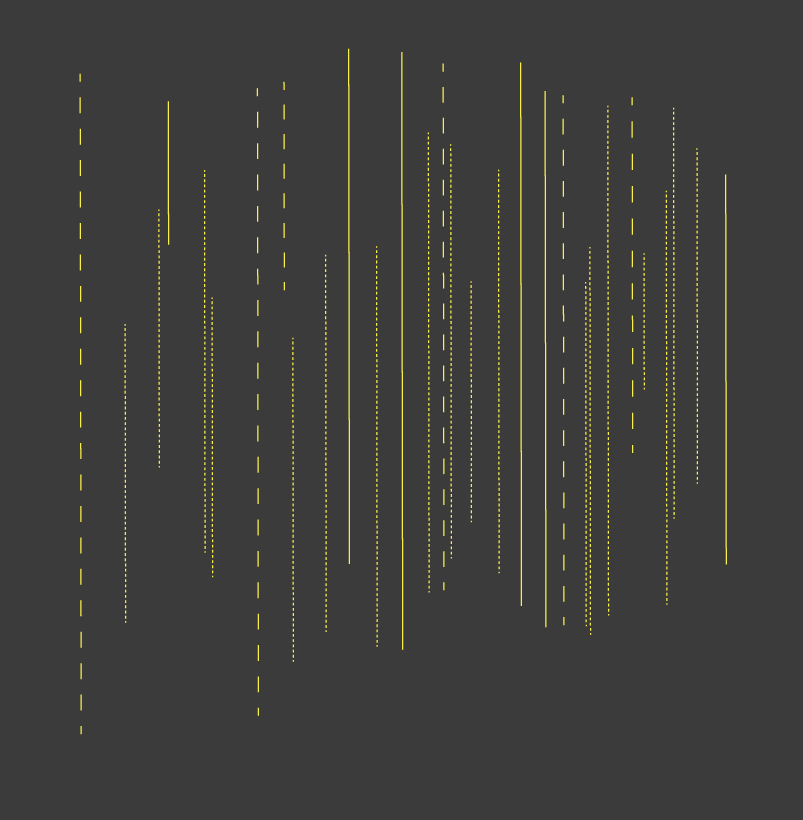
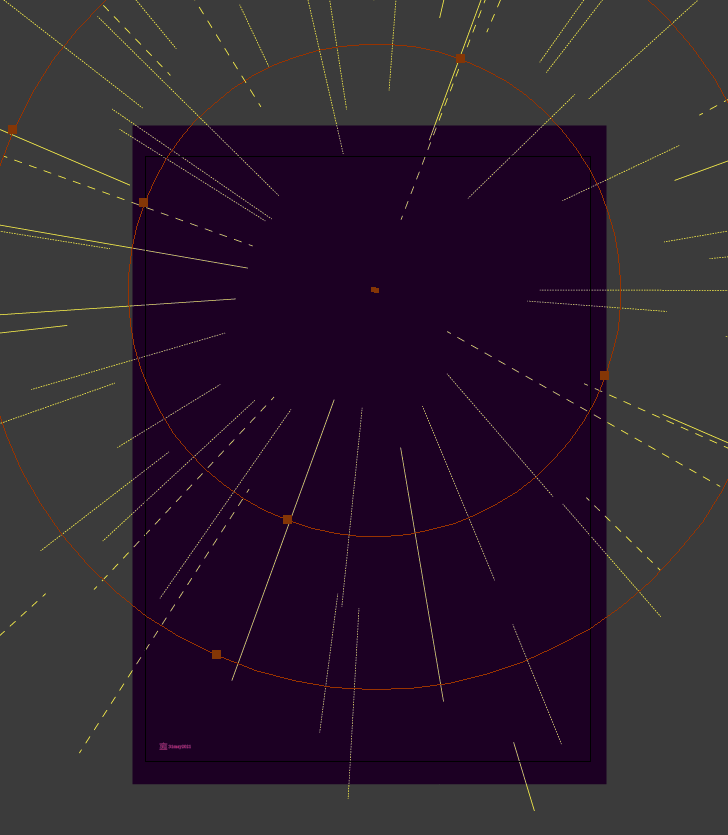
My old friend Dr. Pinkerton asked me to do a poster for his lab rock band’s upcoming gig. I sure did learn a few things about how to make Illustrator cope with complicated files while working on this one – it takes a surprisingly long time to render all these radiating pattern fills!

Here’s a couple of closeups, and an outline view.

If you’re in the New Orleans area I’ll probably be there.

Prints are available if this is a thing you would like to fill a space on your wall with.

Behold My Radiance

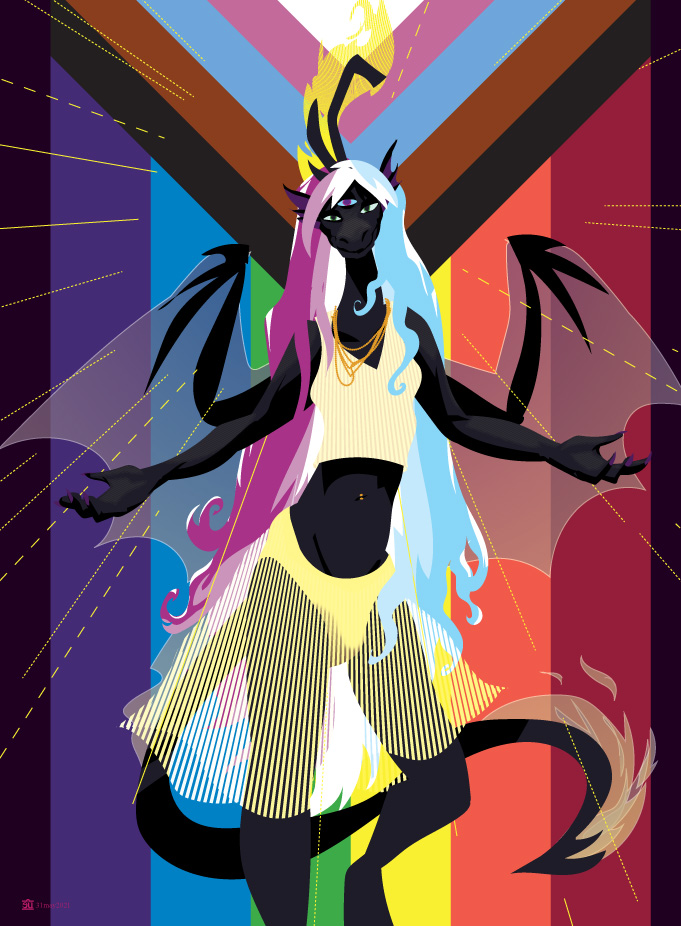
This is your occasional reminder that I am still burning with the phoenix-like flame of self-reinvention that is commonly known as “being a transsexual”. My transition started around 2005 and is pretty much a done deal; I get female pronouns from total strangers. Estrogen’s been kind to me, and my mother was unfailingly supportive of this journey while she was still alive.

Illustrator, about 1h.


I drew this one really quickly, just picking up existing graphic styles for drawing dragon-me and slapping down rough shapes with no preliminary sketch. I should do this more often, though it does have the problem of requiring a bit more focus than scribbling away on a linear sketch – I have to think about colors at the same time as pose and anatomy. Though of course it’s super easy to just lay down really loose shapes then come back and get them to more vaguely resemble anatomy; the head was just a vague oval with three eyes for like 2/3 of the time I worked on this. Eventually I drew a rough dragon snoot on top of it, reshaped it to have some semblance of the planes around eyesockets and cheeks, and added some highlights.

The lines radiating out from the center were drawn as a bunch of parallel lines; I then used Astute’s Super Marquee tool on ‘random’ mode to select some of them and turn them into dashed lines, then made them all into an art brush and drew a couple of big circles with them.

This is a pretty simple way to quickly make some focus lines. Or generally create some kind of graphic device, there’s a lot of op tricks you can do this way too.

Also the background lines are actually just a solid Pride With Trans/PoC Module Flag drawing with gaps between a bunch of black lines generated by Astute’s Offset effect. I could have done something similar with line blends but this plugin makes it stupidly easy to do this sort of stuff, especially once you get the hang of its accompanying tool.

The black dragon probably pops more without them but I have just really been enjoying doing a lot of art that vibrates lately.

older

WordPress is 18 years old today. I’ve been using it for my site for a few months shy of nine of those years.

I have really not had to think about it very much at all. It auto-updates itself. Every once in a great while this breaks something but I can’t remember the last time that happened. It’s still using the custom styles I built over those ten years – one for the main body of the site, plus a few more for each of my comics. I suspect that I may keep on using this same setup for another decade or two, though I may change my mind if they stop updating the plugin that lets you keep on using the original editor instead of the new one that wants you to make a bunch of “blocks” and organize them and would probably require me to crack open big chunks of PHP I kludged up back in 2012 to make it properly work with those blocks.

Illustrator: sluggish previews, and solutions for that.

When you start doing complicated documents in Illustrator, full of live effects and crazy magic, things start to slow down. Not surprising, really: you’re asking it to do a lot of work every time you need the screen redrawn. It makes some attempts to cache as much as it can, but it can only do so much. Here are some things you can do to help it out.

Change the preview mode. In the past few years, Adobe added the capability for Illustrator to use your computer’s graphics card to draw the preview. And if your work is beneath a certain complexity threshold, it’s great – it runs faster than the old CPU renderer ever could, fast enough that they’ve added a switch for “realtime editing” where everything you drag around updates at full color instead of as an outline. But if you cross that threshold? The performance drops off a cliff. Hard. And suddenly you are staring at the spinning rainbow cursor for multiple minutes when you’ve changed something, or just tried to move the view around. The old CPU renderer can still start to slow down in extreme examples of these cases, but it won’t be anywhere near as bad – I’ve never gone beyond “a few seconds”, even in my heaviest drawings.

What mostly seems to invoke this is (1) a lot of layered transparency and (2) a lot of bitmap effects. But I’ve managed to make it happen in other circumstances, like a recent piece that had tons of complex, opaque pattern fills. You can do a quick check to see if this is why things are slowing down by doing view>view using CPU; if Illustrator suddenly starts performing better, then you’ve found it. Note that “view using CPU” only affects the current window on the current document; if you routinely work in ways that make the GPU renderer choke, then consider going to the Performance panel of the main prefs and turning it off permanently.

Maybe the GPU renderer works better if you have a cutting-edge graphics card in your desktop system that can get 600fps in the latest games. I’ll never know, I haven’t owned a computer I can’t stick in my bag since I lost my G4 to Hurricane Katrina.

(This is also often the solution to “I have weird render glitches in Illustrator”, by the way. The GPU renderer is a lot newer than the CPU one, and GPU compatibility is a constantly moving target. Each major release of Illustrator since this was added has had distinctive GPU rendering bugs that pop up on some computers; usually when they get fixed, new ones get introduced. Maybe eventually the Illustrator team will figure out how to find them all and make sure no new ones pop up despite graphics card manufacturers constantly changing things out from under them, but maybe someday Sisyphus will get that rock to the top of that mountain, too.)

Layer thoughtfully. Divide the paths that make up your drawing into layers with meaningful names. And then turn off parts of the drawing that are finished, or are not something you need to see for what you’re working on now. This is super easy to do with comics: I make each panel as a set of layers inside a layer with a clipping mask shaped like the panel border, and while paying attention to the overall composition of the page is important, there’s also a lot of parts of the process when I’m zoomed in on one panel, and can turn off the rest to gain a lot of speed. With single images, I might create a “foreground” and “background” layer and throw the appropriate layers in there. This helps in a lot of other ways, too – thoughtful layering makes it easy to lock parts of the drawing you’re not working on, for instance!

Rasterize finished layers. Target a heavy, finished layer by clicking on the circle to the right of its name.

Then apply effect>rasterize. Probably at at least 300dpi. Illustrator will turn this layer into a bitmap and use that for the preview renders instead of drawing it all from scratch. You probably want to lock the layer, too. When you are done with the whole drawing and want to do your final render, or need to edit something on this layer that turned out to not be finished after all, unlock it, target it, and use the Appearance palette to turn off the Rasterize effect. Warning: Do not do object>rasterize. If you do this then you will lose the original vector art and will have to copy it from an old backup of your file. You do have some kind of regular versioned backup system in place, right?

I call doing this “freezing” the layer, after a feature in an old vector program that did a lot of natural media emulation back around 2000 when even the fastest computer you could buy was probably less powerful than your phone is now. In Creature House’s “Expression”, you could lock a layer, and then if you clicked on the lock again it would change to a little snowflake to indicate that it was “frozen” – which meant that it was both locked, and that it was being rendered from a cached bitmap instead of the vector art. I think Expression did some additional work to make sure that any transparency in the frozen layer was handled properly with regards to stuff on layers below; Illustrator won’t do this, so a few things may look a bit odd.

This can be applied to layers that contain other layers, too, so you could rasterize entire finished panels, or otherwise stick chunks of finished art into one layer – say, if you’d decided the foreground was all done for now, just make a new layer called ‘fg’ and drag a bunch of layers in there. And if you are one of those masochists who works on a single layer and groups everything you can apply this to groups too.

A further refinement of this technique is to create a Graphic Style that’s just the rasterize effect, and apply this to layers you want to do this to. When you want to turn it off for everything, just select the Graphic Style, then visit the Appearance palette and turn off the rasterize effect, and do “redefine graphic style” in the Appearance palette’s menu. Then wait a few seconds as everything gets redrawn from the bitmaps.

Save without PDF compatibility. When you first save a file, you get some options. This is one of them and it’s always on. And I always turn it off. This is mostly just gonna effect your save times and your disc usage, but it can help a lot. Because when Illustrator saves a file with that on, it actually saves a PDF with all your effects expanded, and a copy of the AI file crammed inside it. Got blends, fill patterns, art brushes? Expanded into many more points and paths. Got bitmap effects? Turned into a bitmap. Which is saved in a manner that is in the running for inclusion in a list of Top Ten Inefficient Image Formats. If you are doing simple work then you’ll get files that are twice the size of an un-pdf-compatible AI file; complex work can easily end up 10x the size or more. And that will be reflected in how long it takes for Illustrator to save the file. It won’t affect the preview update speed like the rest of the suggestions in this post will, but it’ll still slow you down if you’re saving regularly. (Which you are, right? You’re not sitting there with a file saved for three days straight, hoping that the crash recovery will save your bacon if it crashes, right? Because it won’t always do that, even if you’ve gone to the prefs and turned off “turn off data recovery for complex documents”. Build that habit of hitting command-S when you take a break, when you finish a significant chunk of the document, or when Autosaviour pops up and reminds you that it’s been a while since your last save.)

As a bonus, sometimes files saved with PDF compatibility on will become corrupted in such a way that the AI file embedded inside is illegible. Illustrator will then load in the PDF. With everything expanded and unedited. And you will swear, and scream, and be very sad. Or at the very best you will sigh and go digging in your backups, and profusely thank Past You for making sure those were happening regularly without any effort on your part. Keep PDF compatibility off and this will never happen. You’ll need to generate a PDF when it’s time to interoperate with other programs; take care to keep those separate from the original AI files. Like in their own folder or something. And close the file immediately after saving the PDF version so you don’t accidentally decide to make a few changes that go into that instead of the AI version.