Illustrator experiments: the chiseled look

So today BoingBoing posted some work by a Russian illustrator named Maxim Shkret.

I’m pretty sure his work is done in a 3D program. But I asked myself “how could I get something like this in Illustrator?” and fooled around a little bit.

After some fiddling with needlessly complex setups that didn’t work anyway, I realized I could do it pretty simply: tell Illustrator to draw two variable-width strokes, one for each side of the line, each in a different gradient.

The above screengrabs are for one of the six related styles I made while experimenting; I’ve got it at different stroke weights (3/6/9pt), and with one of the gradients reversed. The lips are also done with double-gradient strokes; the other shading is simple blurred shapes.

The fun part here is that the hair can be knocked out super quickly with the pencil tool. I could very quickly draw some chunky, super-stylized plastic-looking hair.

It still looks interesting with different colors, too. I may have to experiment with this further and try to do a piece using this. I’m not sure what kind of looks would go well with it.

Anyway. I thought I’d share this little experiment.

How To An Illustrator: Distant Mountains

Another answer to a technique question from Reddit: Here's a fast way to make a bunch of mountains fading into clouds in Illustrator. There are others; this is the way I'd do it.


1. Make two swatches: pink, blue. Check the “global” box in the swatch options for each of them. Draw a big pink rectangle on one layer, make a new one to draw mountains on.

2. Draw a vague inverted-u shape with whatever tool is quickest. I like the pencil tool, double-click on the pencil tool; turn on 'fill new pencil strokes' and 'edit selected', turn off 'keep selected', it's defaults are terrible for fast drawing.

3. Open the Appearance palette. Visit its menu, uncheck “new art has basic appearance”.

4. Fill your shape with a pink-blue gradient made from those two global swatches. Set it to 90°.

5. Add the roughen and tweak effects to this fill. Roughen at 0% size, detail to taste, corner points; tweak 0% horizontal, vertical to taste, play with the modify checkboxes.

6. Add a new fill using the button at the bottom of the appearance palette. Make it solid pink and on top of the first fill. This will be the clouds.

7. Add the ellipse effect to this fill. Relative, 0pt of extra width/height.

8. More effects: transform, 50% vertical, centered on the bottom center of the object; roughen, 4%. 5/in, smooth; Gaussian blur, 13px.

9. Graphic Styles palette: make a new style.

10. Using this style, draw more mountainous shapes. Use object>arrange to put the lower ones nearer, if you didn't draw them in that order.

Stuff in the Appearance palette should be arranged like this.

If you find this useful, please consider supporting my Patreon.


Symmetry

Tonight’s Illustrator how-to: drawing symmetrically.

  1. Draw a big rectangle, centered where you want the center of rotation to be. Far bigger than you anticipate ever drawing in. Like ‘3x as wide as the entire canvas’ big. Give it no stroke and no fill; it’ll become invisible when it’s not selected.
  2. Layers panel: click on the dot to the right of the name of the layer.
  3. effect>distort and transform>transform
  4. in the angle box, type 360/x; in the copies box, type x-1 (where ‘x’ is however many copies of the stuff you draw you want to see – for instance if you wanted to see 15 total copies of your stuff it’d be 360/15 and 14. Illustrator can do simple math in all its numeric input boxes!)
  5. effect>distort and transform>transform – yes, a second one, this time check ‘reflect X’, make one copy, and leave everything else alone.
  6. maybe open up the layer and lock the invisible rectangle so you don’t select it by accident while moving stuff around.
  7. hit up the appearance palette’s dropdown menu, ‘clear appearance’
  8. start drawing shapes
  9. if you want to edit the symmetry, then click on the dot you clicked in step 2, then go to the appearance palette and click on the ‘transform’ entry.
screen-shot-2016-12-06-at-9-47-59-pm

It sounds complicated but it took me like a minute to set up at most, then I doodled this in like another minute or two by drawing a few black and white shapes with the pencil tool.

screen-shot-2016-12-06-at-9-48-03-pm

And here’s a screengrab of the outline view that shows you just how little stuff I actually drew. That little dot near the middle of everything is the center of the big invisible rectangle I drew in step 1.

If at some point you want to tweak individual instances of your symmetric stuff, then click on the dot next to the layer’s name and do object>expand appearance. If ‘expand appearance’ is ghosted then go unlock the invisible rectangle you drew in step 1.

You could also go pay money for Astute Graphics’ MirrorMe plugin, but that tends to not play well with wanting to have symmetry happening across multiple layers, plus I can never remember how to use the damn thing because they only provide documentation in the form of frickin’ youtube videos. This way is covered by what’s already part of AI, and you can do stuff like have, oh, 14 copies of what you draw on one layer, and 11 on another, and expect that to stay consistent across closing and re-opening the file.


And here’s a thing I did elaborating on the insectoid mandala I drew for this post.

Fuzzy shading.

k-fuzzshade

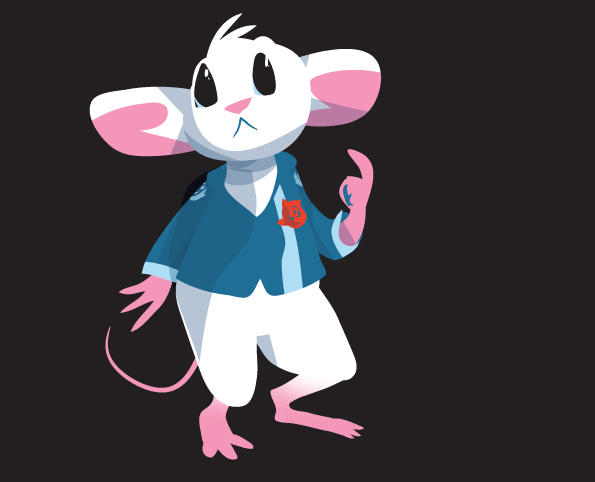
A quick (~15min) doodle of Baron K from Parallax, mostly done to test out a shading method someone asked about on Reddit. The uniform is probably off-model, I didn’t bother pulling up the pitch bible.

I’m not sure about the Baron’s eyes here. I need to do some exploration of how to show expressions and keep his eyes looking like cute little beady mouse eyes. Does he look like he’s looking in a particular direction to you?


screen-shot-2016-11-05-at-1-03-01-pm

This is what I ended up with for the shading effect. Choose color, opacity amount, and blur/mezzotint settings to taste; if you make a Graphic Style and draw all your shading using that, you can tweak the appearance then do ‘redefine graphic style’ to apply it to the whole drawing.

k-fuzzshade-defuzz

And this is what it looks like if I turn off the blur and mezzotints. Just a bunch of shapes drawn with the pencil tool and occasional use of ‘draw inside’.

some pointillism

Saránta Eptá

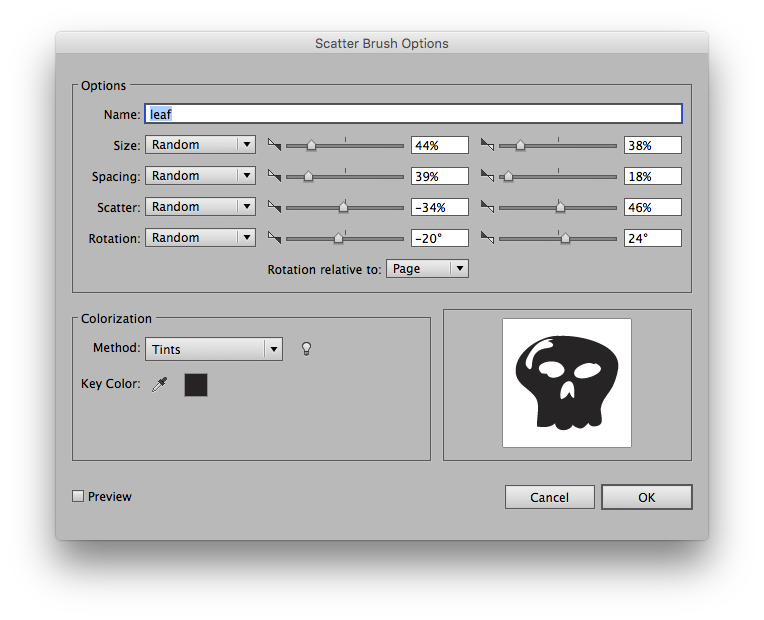
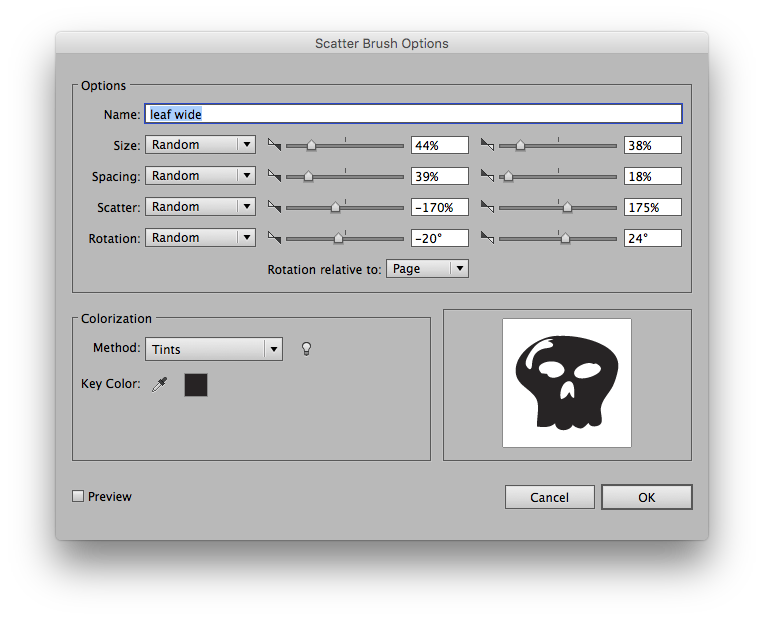
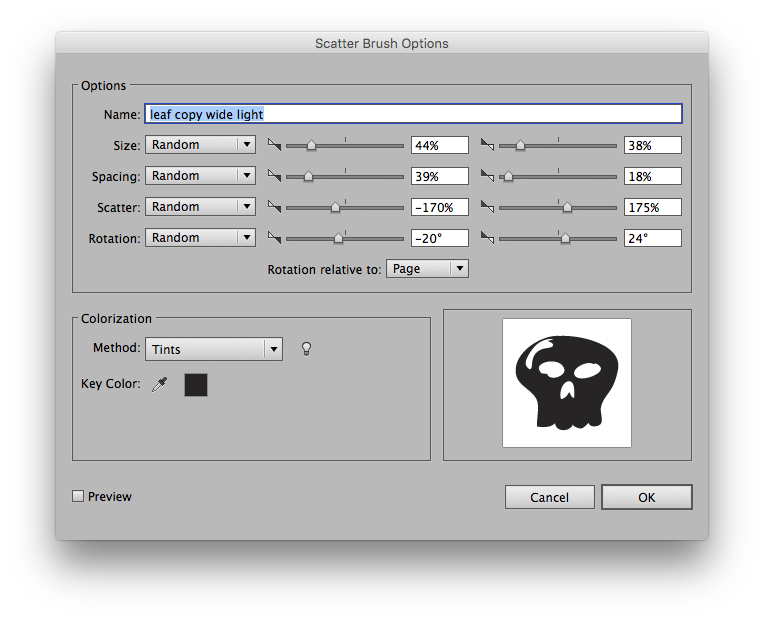
Fooling around with making Illustrator do stippling for me via the magic of a few scatter brushes. Because holy shit all those dots would be a ton of work. Especially when I decided to retroactively make them tiny little skulls  once it turned into my Bloodborne character.


Illustrator, about ~30min to draw, plus another half hour fooling around with turning the dots into different things.


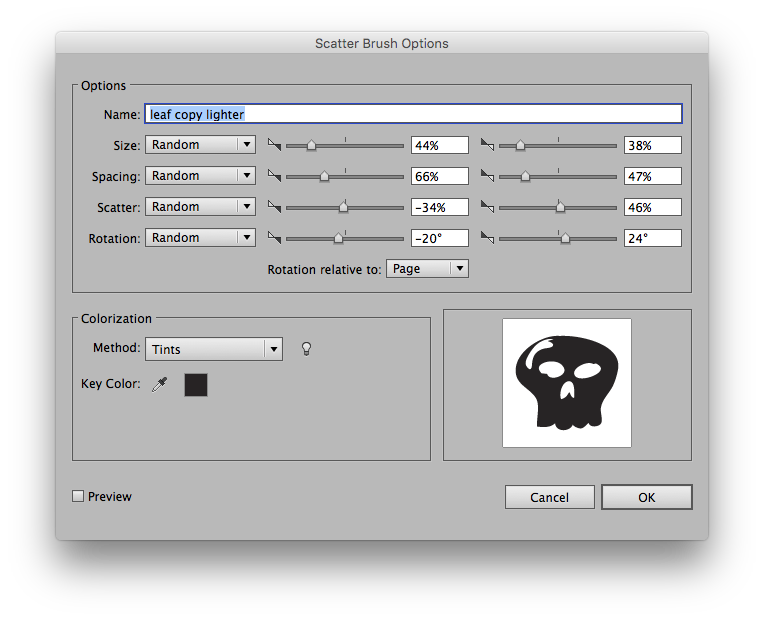
edit: here, have some brush settings. They’re all called “leaf” because I started with one of my standard toolkit brushes, a jaunty little rectangle scatter brush I use for abstracted leaves. I ended up replacing them with a skull made up of five paths (overall shape, each eye, nosehole, highlight) joined into a compound path. I made the others by just duplicating the first brush and changing the settings, mostly by either widening the scatter range to create a broader stroke, or by raising the spacing to make it lighter. You could easily make a few more if you wanted to take a stippled piece further than I did here. Things may start to get a little sluggish though. Use multiple layers, hide them and maybe make simple gradient proxies, consider writing up a feature request for something like Expression’s “freeze layer” function again. (Expression was a wonderful natural-media vector package that Illustrator is still trying to catch up to; one thing it could do was “freeze” a layer. Which was like locking it except it also rendered a moderately high-res bitmap, and used that for building the preview instead of rendering everything from scratch. It made working with complex drawings a lot faster.)

How To An Illustrator: abusing image trace

image-trace-experiment-zz
Screen Shot 2016-04-09 at 7.42.54 AMFucking around with image trace because someone asked how to do this kind of stuff on Reddit.

Process:

  1. import image
  2. object->image trace->make
  3. window->image trace, set it to black and white with a threshold of about, oh, 30 or so. Maybe open up the ‘advanced’ triangle and check ‘ignore white’; I’ll talk about why you might want to do this later.
  4. in the layers palette, drag the layer this image is on to the ‘create new layer’ button at the bottom of the palette.
  5. you are now editing a new copy of the image, in this new layer. Set the trace threshold a little higher.
  6. repeat steps 4/5 until you feel like you have Enough layers to work with. You might want to set these layers to about 20-50% at some point so you can see what’s going on.

Now, you have at least two options here. First I’ll talk about how I did the B&W image with pattern fills.

  1. I’d checked ‘ignore white’ in step 3 above. This gave me a set of paths that were just the black parts, as opposed to solid black and white.
  2. make a new layer at the top of the stack, call it ‘construction’. Probably lock all the other layers so you don’t interact with them by accident.
  3. somewhere above the image, draw a horizontal unfilled, stroked line that’s around half again as long as the diagonal of the image.
  4. effect->distort and transform->zig zag. If you want wavy lines like this then choose ‘smooth’ in the ‘points’ section.
  5. alt-drag the line to well below the bottom of your image.
  6. select both lines, object->blend->make. Then object->blend->blend options and fiddle with the settings until you like the spacing between your lines.
  7. select that whole blend and drag it into the swatch palette to make a pattern fill. You could also do object->pattern->make but that will immediately throw you into the pattern editor mode, and we don’t need to do that here.
  8. Hide the ‘construction’ layer. Show everything else. Select all the image traces and do object->image trace->expand. Sadly you can’t expand multiple image traces at once; you have to select them one by one. I feel the most efficient flow for this is to unlock one layer, select all, expand the trace, lock the layer, then go on to the next one, but whatever works for you. You might want to record an action or add a keyboard shortcut to the image trace expand as it’s pretty deeply buried in the menus.
  9. Lock all your layers; unlock one and do edit->select all. Then pick the wavy lines pattern swatch you made.
  10. Lock off that layer, unlock another one. Select all and pick the wavy lines pattern swatch.
  11. Choose the rotation tool and start to rotate the image. Before you let go, press the ~ key. This is a switch that says “only transform the pattern fill”; you’ll see your outlines replaced by bounding boxes of all the paths. Maybe hold down shift to constrain it to 45º angles.
  12. Repeat steps 10/11 until you’ve dealt with all your layers.
  13. Enjoy your cool artsily separated photo. You could use whatever fill pattern you like for this.

(As a side note, the ~ trick to move a pattern fill around in a shape works with the scale, reflect, and arrow tools, as well. It does not work with the free transform tool.)

And here is another way to do it: opacity masks.

  1. do those six steps at the top of the post, but turn off  ‘ignore white’ in the image trace options.
  2. lock everything except one image trace layer. Select all; cut. Yes, cut.
  3. In the layers palette, click on the circle to the right of the now-empty layer’s name.
  4. In the transparency palette, press the ‘make mask’ button. Check ‘clip’ and ‘invert mask’.
  5. Click on the big black square that appeared in the transparency palette, and paste. Now you have an opacity mask. You can see its outline if you do view->show edges, and you can see it in the transparency thumbnail’s palette, but nothing shows up on the screen. That’s because the opacity mask is a greyscale image that affects the transparency of what it’s attached to, and right now it’s attached to an empty layer.
  6. Click on the empty square in the transparency palette to go back to editing the layer, and draw something in it. Maybe a big black rectangle. Maybe a colored one. Maybe a pattern fill. Maybe draw two circles and blend them, that’s what I did here. And then duplicated and slightly offset them to create a cool morié pattern in the image.
  7. Repeat steps 2-6. If you want to move some of the stuff you drew in step 6 without moving the opacity mask, then click the chain link between the two thumbnails in the transparency palette. Otherwise you’ll move the opacity mask as well.
  8. Enjoy your cool artsily separated photo. You could also try unchecking ‘invert mask’ on one layer and using it to overlay art in the lighter areas of the image, rather than the darker.

There are other ways to do this – you could expand the image trace (with ‘ignore white’ on), turn it into a compound path, and use it as a layer clipping mask for the layer full of whatever imagery you want to draw; you could probably do something involving destructive operations with the Pathfinder palette, too. Which is a major sin in my book as I like to do non-destructive edits whenever possible.

If I was to rank these methods from most to least editable down the line, it’d be opacity mask > pattern fills > layer clipping mask > pathfinder stuff. For instance, I wanted to add a little extra shadow under the chin to help distinguish it from the face. With the opacity mask method I could just go into a layer mask and draw some black shapes over the image trace. Adding more shapes the pattern fill way can be a little finicky with keeping the fill patterns in alignment; adding more shapes to a complex layer mask is even more fiddly, and destructive pathfinder operations have to be done completely from scratch.

You can also do a similar trick with Astute Graphics’ WidthScribe palette, if you feel like spending some money for a plugin that only has a bunch of YouTube tutorials and no manual.

bug report: “unwanted toads in my brush palette”

So there’s this side effect of Adobe’s attempt to retool Illustrator into something that can be driven entirely by a touchscreen: an uneditable, undeletable “Touch Calligraphic Brush” appears at the top of your brush palette.

This has annoyed me for a while, as I am pretty committed to driving it with keyboard and stylus. It’s not a huge annoyance, but it’s just this… intrusion… on my otherwise neatly-organized files. I finally decided to write it up as a bug.

In other news, this Purple Arrow I picked up at American Mary the other day on a budtender’s recommendation is some pretty good stuff.


******BUG******
Concise problem statement:

An uneditable, undeletable “Touch Calligraphic Brush” appears at the top of the Brush palette for every single document, including ones that predate touch devices. On my Macbook Air, which is not a touch device, with files that have never been loaded on a touch device.

Steps to reproduce bug:

  1. Start Illustrator on a computer with no touchscreen.
  2. Load a file or create a new one.
  3. Try to edit the “Touch Calligraphic Brush”.
  4. Try to delete the “Touch Calligraphic Brush”.

Results:

The Touch Calligraphic Brush stays there at the top of your brushes palette. It refuses to move. Refuses to let you change its settings. It mocks you every time you look at the brush palette, an unasked-for, unwanted squatter in the middle of your tools, like a toad that’s plopped itself down in the middle of your pencil box. It’s polite, as toads go. It doesn’t demand you feed it flies, it doesn’t excrete all over a work in progress and ruin it, it doesn’t even croak. But it’s always there right in the middle of where your tools are. And sometimes you put your hand on it when you reach for a pencil without really looking, and it’s all clammy, and gross, and why is this toad in the middle of my pencil box, taking up space I could keep drawing tools instead? When you call the people who make the pencil box, they tell you that, oh, yes, the toad has to be there for the benefit of people working in the exciting new medium of toad secretions, so that when they try to use a toad to draw with, there’s always a toad there, and this just leaves you (as an artist working in the medium of pen and ink) rather baffled as to why this means everyone has to have a toad in their pencil case now.

I mean, also sometimes the pencil box summons this five inch tall giraffe made of fire who burns your drawing up, and that’s something both you and the people who made this magical pencil box are more concerned with, but still. I just keep on putting my hand on this toad sometimes, and it’s just moderately annoying on a constant low level.

Expected results:

The Touch Calligraphic Brush acknowledges that its presence may be unnecessary or unwanted for some people, and lets you edit and delete it.

Or even better, perhaps the Touch Calligraphic Brush never even appears if you’re not on a touch device.


edit: In 2023, I put this in the new Illustrator bug/feature request system. It’s 2024 and this toad is still there, and I still touch it by accident now and then.